How to Add Captions to Instagram Stories and Reels
To add subtitles to an Instagram Story, open the sticker tray, tap Captions, check the words Instagram transcribes and tap Done before you share. On a Reel, tap Captions in the editor toolbar and edit the text on the timeline. If Captions is missing, or the clip also goes to TikTok and Shorts, burn the subtitles into the video in an editor: they become part of the picture, so everyone sees them and they don't depend on any Instagram feature.
Fix it fast
By Artem Shtanov. Updated . The Stories and Reels editor steps were checked on an iPhone with Instagram 456.0.0.35.67 on 12 November 2026. The screenshots show that check; troubleshooting advice from other sources is identified separately.
This guide is about subtitles for what you say in a video. If you mean the text under a post, that's a different kind of caption: see Instagram's help page Add a caption before sharing your post.
| Your situation | What to do |
|---|---|
| You have the Captions sticker | Sticker icon → Captions → check the words → Done → share |
| You want subtitles on a Reel | Tap Captions in the Reels editor toolbar, check the words, share |
| There's no Captions sticker | Update the app, search "captions" in the sticker tray, try the Reel trick. Still nothing: burn the subtitles into the video |
| The Reel is already posted | Open it, tap Options → Edit |
| The Story is already posted | A posted Story can't be edited, so the only way to add subtitles is to delete it and post it again |
| You're watching and want subtitles on or off | Options → Closed Captions on the video, or Accessibility and translations in your profile menu |
Stories: use the Captions sticker
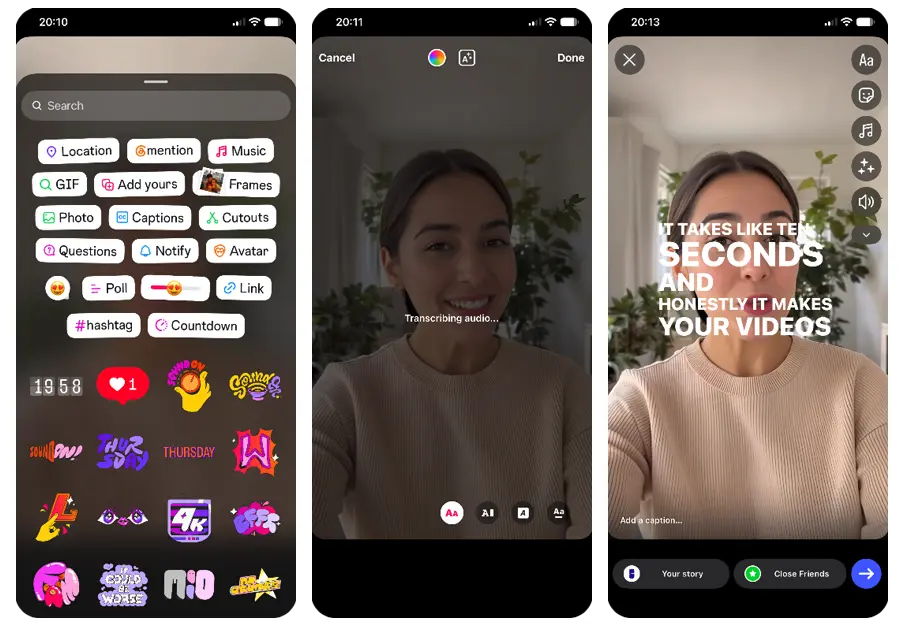
The Captions sticker turns the speech in your Story into subtitles on screen. It works only in the Instagram mobile app, and only before you share. Here's how to add subtitles to an Instagram Story with it:
- Open Instagram, start a new Story, and record a video or pick one from your camera roll.
- Tap the sticker icon in the column of buttons on the right (the square with a smiley face).
- Tap Captions in the sticker tray. You'll see "Transcribing audio…" for a few seconds; on our 11-second clip it took about five.
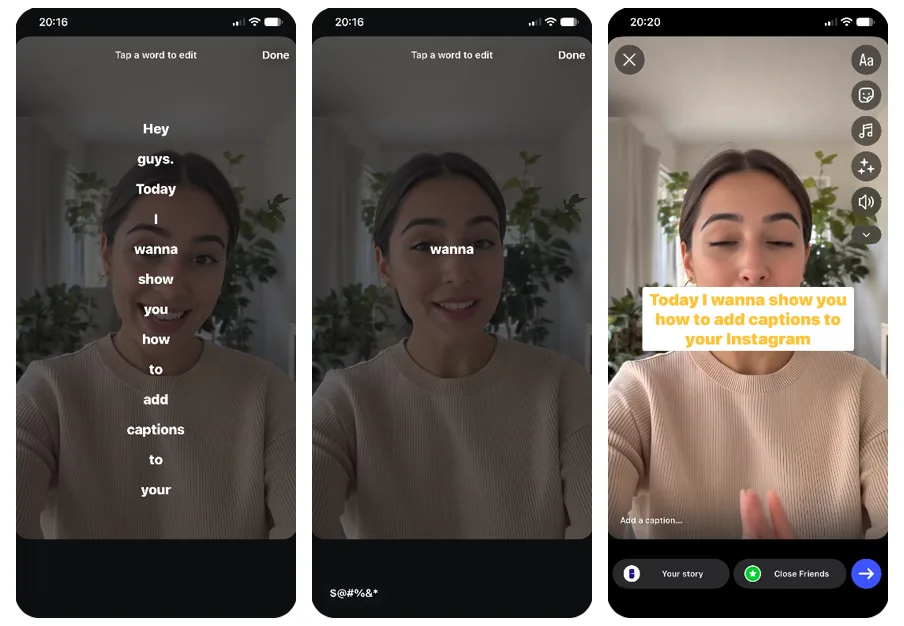
- Read the subtitles through. To fix a word, tap the subtitles: Instagram shows the transcript one word per line under Tap a word to edit. Tap the word and type the correction.
- Choose a style and color, then drag the subtitles somewhere they don't cover your face.
- Tap Done and share the Story.
 Zoom image
Check the words before you share: caption guides note that a Story can't be edited once it's posted. That leaves one way to add subtitles afterward: delete the Story and post it again.
Style your subtitles
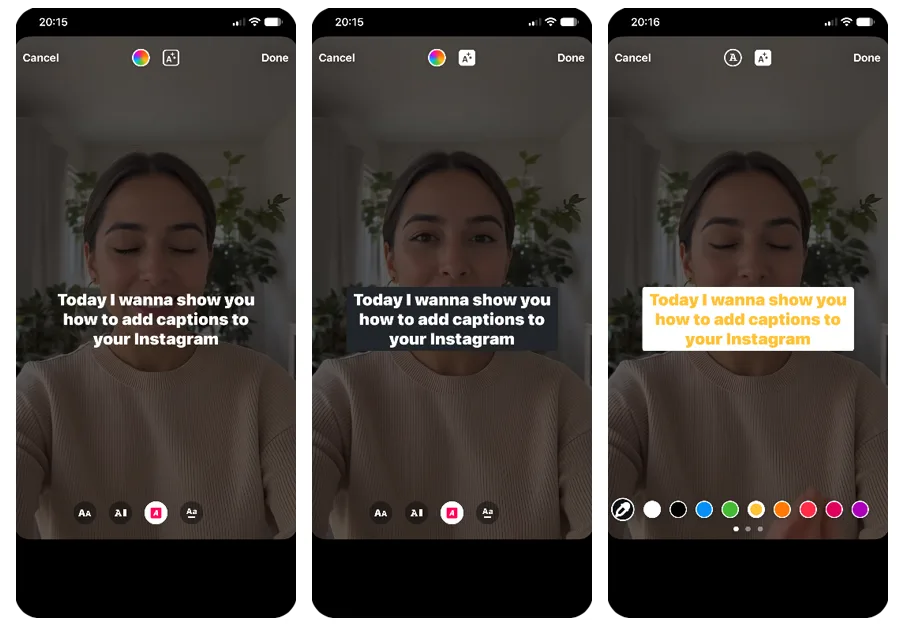
One caption guide describes four text effects, shown along the bottom of the screen: words that appear one by one as you speak and clear at the end of each sentence; a typewriter effect, where words stay on screen for a moment after you stop; a scrolling line that slides up to make room for the next; and a highlighted current line with faded lines around it, which is easy to follow but covers a lot of the screen.
Tap the color wheel at the top to change the subtitle color. In our check it offered nine colors and an eyedropper: tap it, then tap any spot in your video to pick up that color. The A✨ button next to the text icon puts a background behind the words; with a dark background Instagram switches the text to a light color, and the other way round. According to the same guide, swear words are replaced with symbols automatically. You can hide any other word yourself: when you edit a word, a $@#%&* button appears at the bottom of the screen.
 Zoom image
Not everyone gets the same menu. Commenters under popular tutorials report fewer styles, a fixed set of colors with no eyedropper, or no background option.
Long Stories
One caption guide reports that a Story longer than 60 seconds is split into several Stories, and the subtitles appear only on the first part. If your clip runs past a minute, check the second part before you move on. If it has no subtitles, cut the video into pieces under 60 seconds and add the Captions sticker to each one.
Reels: add and check captions
Reels give you two built-in routes: the Captions button in the Reels editor, or auto captions switched on as closed captions when you publish. In Instagram's words, it "uses speech recognition to automatically create captions for reels and videos" (Instagram Help Center).
Add captions to a Reel
- Tap + (Create) and choose Reel at the bottom of the screen.
- Record a video or pick one from your camera roll, then tap Next.
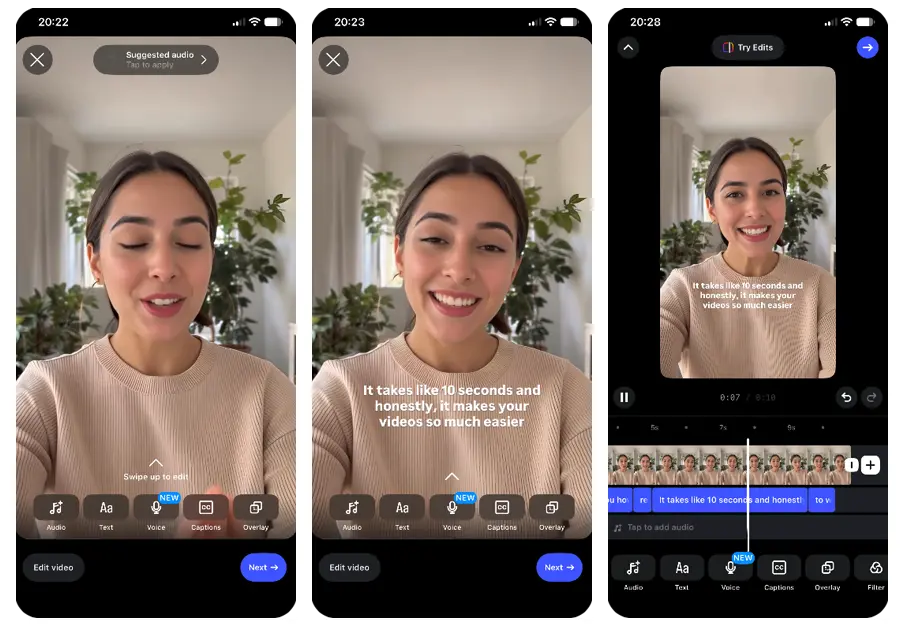
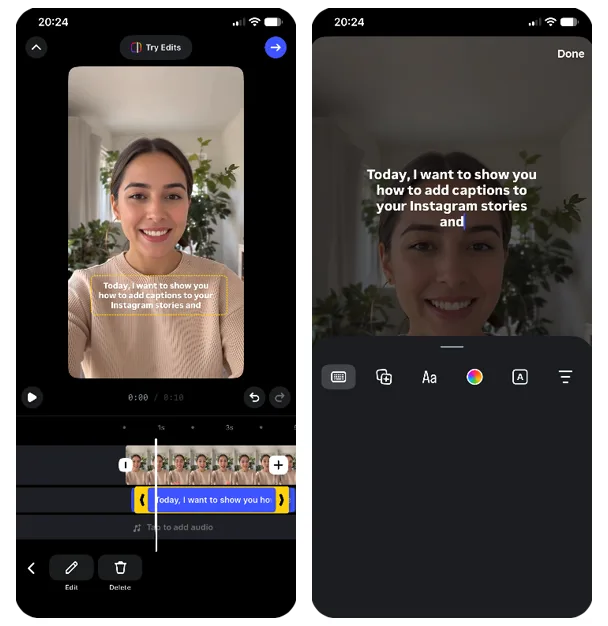
- In the toolbar at the bottom of the editor (Audio, Text, Voice, Captions, Overlay), tap Captions. Instagram transcribes the speech and puts the subtitles straight onto the video.
- Tap the subtitles to open the timeline. Select the caption track and tap Edit to change the words, font, color, background or alignment.
- Tap Next, write the text for your post, tap Next again, and then Share.
In our check the Reels editor had no separate sticker step: Captions was a button in the toolbar. If you don't see it there, open the sticker tray and search for "captions".
 Zoom image
Turn on closed captions
Instagram's help page on closed captions for reels describes a toggle: on the last screen before you share a Reel, tap Advanced settings and switch on Enable closed captions. Some older guides call it Show captions under an Accessibility heading. These subtitles are generated automatically, and each viewer decides whether to show them.
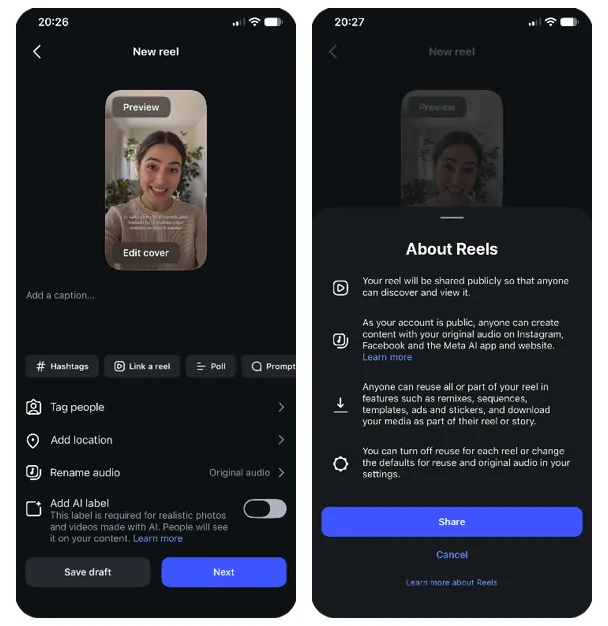
In our check (Instagram 456 on iPhone, 12 November 2026) the screen before sharing had no Advanced settings: it listed the post text, hashtags, tag people, location, audio name and an AI label switch, and Next went straight to the Share confirmation. So the toggle depends on your app version and account; if you don't have it, use the Captions button in the editor instead.
 Zoom image
Neither route works on a computer. Instagram's help says caption management "isn't available on computers", only in the iPhone and Android app.
Check your subtitles before you share
- Watch the whole Reel once. One guide lists where automatic transcription slips: accents, fast or excited speech, background noise, and uncommon words like brand or product names.
- The position is fixed. The sticker stays in one place for the entire video, so pick a spot that works for every shot.
- The font comes with the style. The same guide lists four Reels styles (classic, typewriter, scroll and fade), each with a preset font you can't change on its own.
- You can't restructure the lines. A person who captions Reels for accessibility listed the limits on r/accessibility: two lines per subtitle at most, no way to add a new subtitle to split a long one, and timing you can stretch by a second or two but can't move earlier.
Captions sticker missing or not working
If you don't have the sticker, try these in order:
- Update Instagram from the App Store or Google Play, then reopen the app.
- Search the sticker tray for "captions", and for the word your interface language uses. A user in the Netherlands found it under "bijschriften" after a year of looking.
- Try the Reel trick. Start a Reel, record a few seconds of speech, tap Next, and open the stickers. Choose Captions (or find it under Edit video), then leave without posting. Now start a Story, open the stickers, and tap the search tab without typing: Captions may appear under Recently used. A Reddit user in a non-English-speaking country shared this, and several replies said it worked. The post is two years old, so it may not work in every current version.
- Set your phone's main language to the one you speak in the video. On r/accessibility, one creator's subtitles started generating only after they made the video's language the phone's primary language; having it as a second language wasn't enough. You change it in your phone's system settings, not in Instagram.
- Make sure the video has speech. The sticker transcribes a voice. One commenter got no subtitles on a Reel that used a sound saved from another account.
Still nothing? Burn the subtitles into the video and upload it as a regular Story or Reel (see how below). Typing every line by hand with the Aa text tool also works, but it's slow when there's a lot of talking.
Why the sticker is missing at all isn't clear. Guides suggest it hasn't reached every country or account yet, and one says it's most often missing on new accounts that haven't posted much, adding that Instagram has given little guidance on who gets it. The most-liked comment under one popular tutorial (305 likes) says the sticker isn't available in India, and others report the same from Italy, the Philippines, Poland, Japan, Sweden and Indonesia.
Instagram auto captions not working: "No captions found"
Some people get as far as "Transcribing audio", then see "No captions found" or "Check your internet connection and try again". We found no explanation from Instagram. Things to try:
| What you see | What to try |
|---|---|
| No Captions sticker in the tray | Steps 1–3 above |
| "No captions found" | Our guess from user reports, not Instagram's advice: check the clip has a clear voice and no borrowed sound, then try a different clip |
| Subtitles on your own video won't generate | Step 4: match your phone's primary language to the video (one user's fix) |
| Nothing works | Burn the subtitles into the video, or type them with Aa |
Edit, position or remove your text
To fix a word in a Story, tap the subtitles, tap the word, type the correction, and tap Done. In a Reel, tap the subtitles, select the caption track on the timeline and tap Edit.
 Zoom image
 Zoom image
When your edits don't stick
Several r/Instagram threads describe the same problems:
- Corrections revert. You fix a word ("won" transcribed as "one", in one case), tap Done, and the original text comes back.
- The text changes size with each edit. One Android user's subtitles got smaller every time they edited, until they were unreadable after five or six edits. Commenters said they saw it in Instagram's Edits app rather than the main app.
- The edit prompt does nothing. On r/accessibility, a creator confirmed the "do you want to edit the captions?" prompt and nothing happened.
One poster's workaround: download the edited video without the subtitles and upload it as a new Reel draft. If every word has to be exact, subtitles burned into the video avoid the problem, because you check the text before it ever reaches Instagram.
Where to place subtitles so the app doesn't cover them
Drag the subtitles with your finger. On Reels, that position applies to the whole video. Keep the text off your face and anything else the viewer needs to see, and, as one guide advises, preview the Reel with the interface showing to make sure the words stay visible.
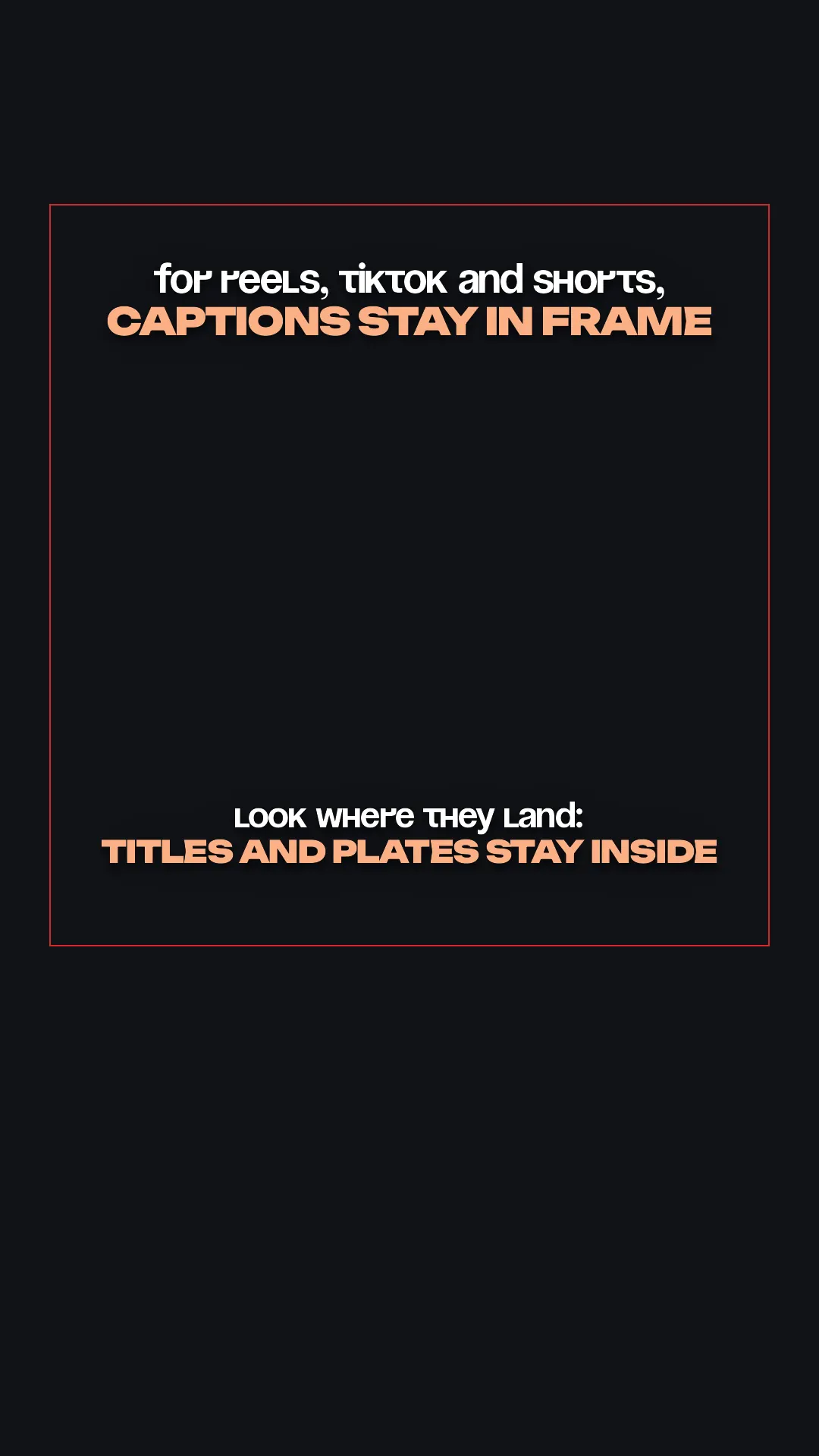
For our own videos, ReelsCut keeps subtitles and titles inside these margins on a 1080×1920 frame: 220 px from the top, 340 px from the bottom (a little more than the bottom sixth of the screen), 60 px from the left and 130 px from the right. That's our rule, taken from our renderer, not a Meta specification. The Reels safe zone template is an overlay you can drop on your frame to check.
 Zoom image
Remove subtitles, or change them after posting
- Before you post: nothing is public until you share, so you can discard the draft and start again.
- On a posted Reel: Instagram's help says to go to your profile, open the reel, tap Options, then Edit. One guide adds that Advanced settings on that screen has the captions toggle, so you can add auto captions to a Reel after posting, or turn them off.
- On a posted Story: a Story can't be edited after it's posted, so the only way to add or change subtitles is to delete it and share it again.
Turn captions on or off, and fix the wrong language
This section is for viewers: how subtitles behave when you watch other people's Reels.
For one video
Following Instagram's help: tap the video or reel, tap Options (the three dots), then Closed Captions, and choose Always show closed captions or Never show closed captions.
For all videos
To turn on captions on Instagram for every video, follow Instagram's help: go to your profile, tap the menu in the top right, and under Your app and media tap Accessibility and translations. Then tap Select next to Always show closed captions or Never show closed captions. One guide says you can pick a preferred caption language on the same screen, and that this setting covers Reels and video posts but not Stories.
Subtitles in the wrong language
An r/Instagram thread describes subtitles on English-language Reels from US creators suddenly showing up in other languages. Posters checked the language settings in both the app and the phone, and it made no difference; one commenter calls it a bug. If you're the creator and the subtitles on your video come out wrong, step 4 in the missing-sticker section is the one reported fix.
Subtitles keep turning back on
An r/Instagram thread asking why captions turn on again after being switched off drew 20 comments. We didn't find a fix, there or in Instagram's help. The two settings above are the switches to check.
For creators, the point to take away: viewers can switch off only closed captions. Subtitles burned into the video stay visible for everyone.
Built-in versus baked-in captions
Closed captions are a separate track that each viewer can turn on or off. Open captions, also called burned-in or baked-in subtitles, are part of the video image, so they're always visible.
| What matters | Instagram Captions (sticker or Reels button) | Closed captions (Reels) | Burned into the video |
|---|---|---|---|
| Where it works | Stories and Reels | Reels and feed videos | Anywhere the video is shown |
| Viewer can hide it | Sources disagree | Yes | No |
| Depends on country and account | Yes | Yes — Instagram's help says it's only available in some locations | No |
| Styling | Effects, color, background | Not documented | Whatever your editor allows |
| Changes after posting | Story: no. Reel: not documented | Via Options → Edit, per Instagram's help | Re-upload the video |
| Comes along to TikTok and Shorts | No | Not documented | Yes |
| Translation for viewers | Instagram's help has articles on it | Instagram's help has articles on it | No |
Which to use
 Zoom image
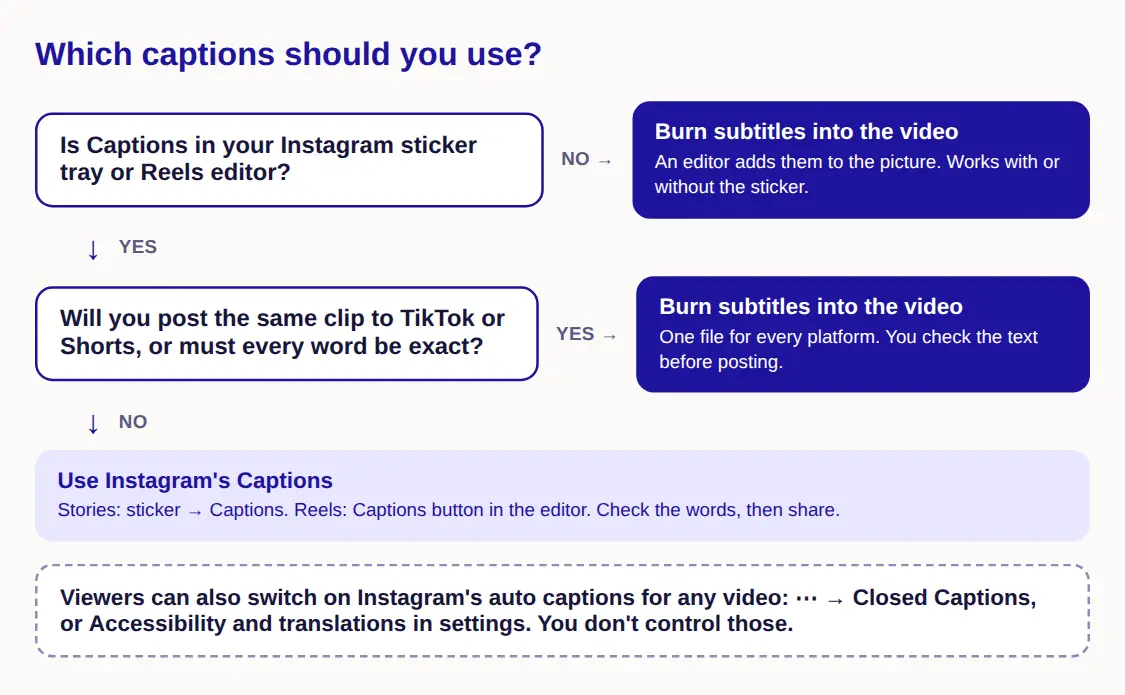
- A quick Story from your phone: the Captions sticker, if you have it.
- A Reel for people watching on mute, in any country: burned-in subtitles. They show whatever the viewer's settings and whether or not you have the sticker, and the same file works on TikTok and Shorts.
- Viewers who rely on their own settings: closed captions. Burned-in text can't be resized, restyled or auto-translated for someone who needs that, which is why one accessibility helper on Reddit wanted to "leave it up to the user".
A separate editor such as CapCut is another way to burn subtitles in instead of using the sticker; see our CapCut alternatives page.
Bake captions into a talking-head video with ReelsCut
A missing sticker, edits that revert and subtitles in the wrong language are all problems with captions Instagram generates. Subtitles that are part of the video don't have them.
ReelsCut is a web app for vertical 9:16 talking-head videos, where you speak straight to the camera. On a phone, open app.reelscut.ai in your browser; there's nothing to install.
- Upload your raw recording as MP4 or MOV. Several takes are fine.
- ReelsCut picks the best take, cuts the pauses and stumbles, adds subtitles synced to your voice, and puts a hook title in the first second.
- Choose the look: 25 caption styles, 23 fonts and 26 colors, with emoji if you want them. Speech in 90+ languages is supported.
- Ask for changes in plain words, such as "keep the pause before the second point". There's no timeline to scrub.
- Download the video and post it to Stories or Reels as a regular clip, with no sticker needed.
You watch the full video for free before you pay, and the Free plan covers 5 videos a month. ReelsCut isn't the right tool for horizontal video, screen recordings or clips without speech: with no voice there's nothing to subtitle, the same as with the sticker.
More on the editing side: how to cut pauses and filler words and how to merge several takes into one video.
Frequently asked questions
Does Instagram translate subtitles?
Instagram's Help Center has separate articles on watching translated reels in other languages, translating your voice in Reels and reading the Captions sticker in its original language. Some app versions also offer Only show translated closed captions in a video's Closed Captions menu.
Does the Instagram Edits app add subtitles?
Yes, Edits generates subtitles too, and it has a bilingual captions option. Reddit users report rough edges: one person found the bilingual option translated only the line they tapped, not the whole track, and another couldn't find a way to add subtitles by hand where Edits skipped a section, so they replaced them with plain text.